

Cupola Review: The MacBook Notch App Unifying Apple Calendar, Reminders & Notes
Apple builds some of the finest native tools for scheduling, tasks, and note-taking—yet on macOS, they remain trapped in three separate, disjointed windows. Cupola solves this friction with an inventive, local-first utility that tucks your entire daily schedule, task checklists, and Apple Notes into a single panel hidden inside your MacBook notch. One subtle hover, zero recurring subscriptions, and zero cloud lock-in.
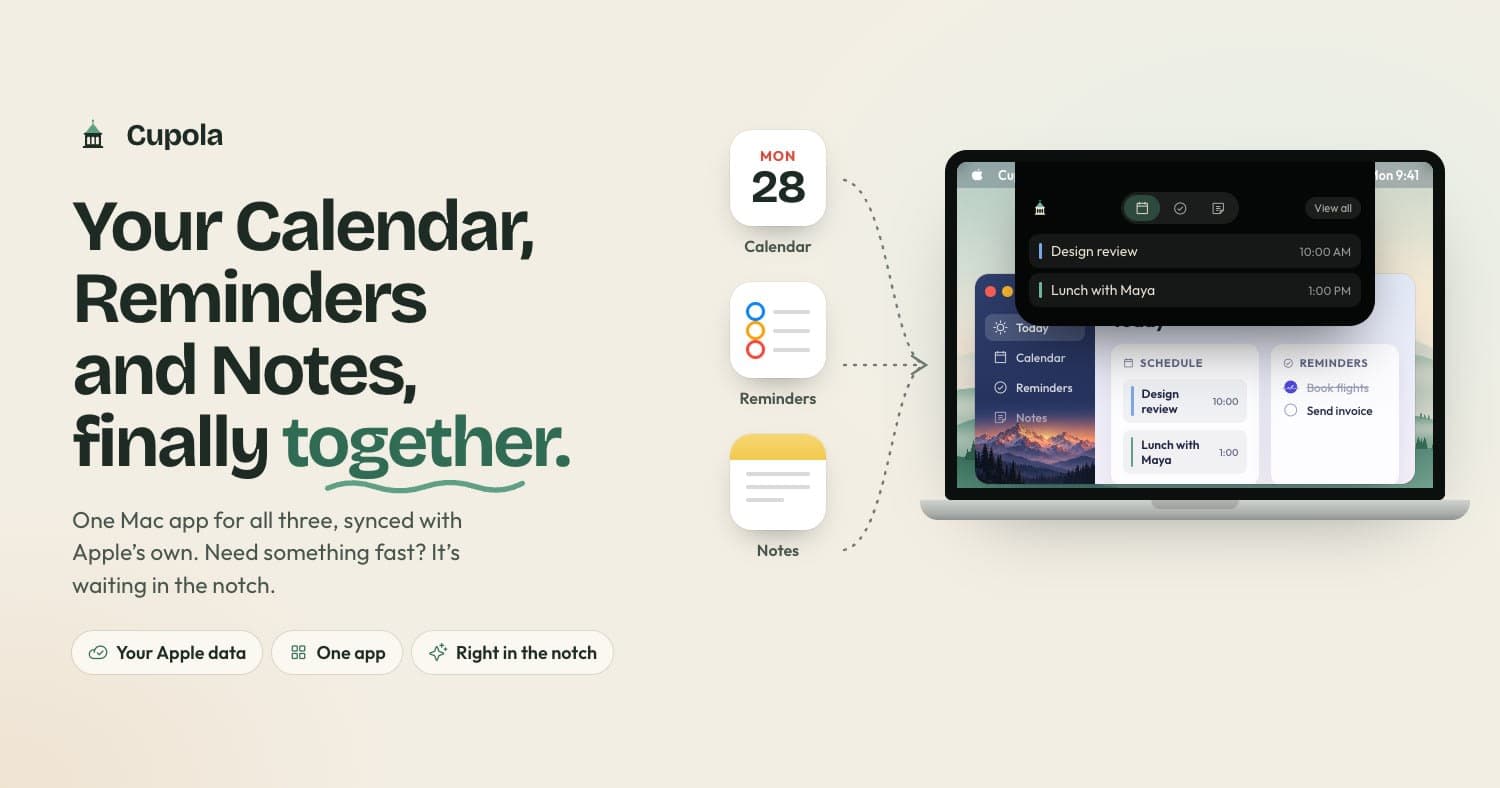
Platform overview: Cupola's unified macOS interface displaying calendar events, interactive checklists, and Apple Notes in a single hoverable panel.
Quick Platform Snapshot: Cupola
What is Cupola? The Story Behind the Notch Productivity Hub
Cupola is an independent macOS desktop utility created by developer @saas_buildr that addresses one of the most persistent everyday annoyances for Mac power users: app switching friction. Rather than attempting to reinvent calendar, task, and note-taking backends from scratch, Cupola connects directly to Apple's native ecosystem—Apple Calendar, Apple Reminders, and Apple Notes—and renders them inside a single, unified HUD directly under your MacBook display notch.
The product tagline summarizes its mission: "Your Calendar, Reminders and Notes, finally together."
Whenever you need to check your upcoming meeting, cross an item off your grocery checklist, or jot down a quick thought during a phone call, you don't have to hit Cmd + Tab, launch heavy Electron applications, or navigate multiple desktop Spaces. You simply glide your cursor over the camera notch at the top of your MacBook screen. A sleek, four-tab interface immediately drops down, lets you view or edit your data, and smoothly hides the instant your cursor moves away.
By treating the physical camera notch not as an obstacle or an eyesore, but as an always-accessible spatial anchor, Cupola transforms dead bezel pixels into the most responsive organizational dashboard on macOS. It eliminates the cognitive overhead of hunting down background windows while ensuring every piece of data you touch remains safely rooted in Apple's secure iCloud storage.
The Problem With Apple's Default Productivity Stack
Apple's stock applications have gotten remarkably capable over the last few macOS updates. Apple Calendar integrates with Google and Exchange seamlessly; Apple Reminders features natural language parsing, tags, and smart lists; Apple Notes supports inline PDFs, rich tables, and lightning-fast handwriting search.
Yet, their user experience on a Mac laptop suffers from three glaring design flaws that cost knowledge workers hours of lost focus each week:
1. Fragmented Windows & Context Switching
To plan a single productive afternoon, you need three separate apps running in three windows. When you are writing code, drafting a proposal, or editing photos in full-screen mode, jumping back and forth destroys deep work and mental focus. Research in human-computer interaction consistently proves that recovering from a window-switching distraction takes an average of 15 to 23 minutes.
2. Rampant Subscription Fatigue
Third-party alternatives like Fantastical, Morgen, or Todoist demand anywhere from $40 to $80 per year in perpetual recurring subscriptions. For users who simply want a fast, beautiful way to review their day, paying an ongoing monthly tax is difficult to justify. Many productivity software suites end up costing more than the streaming media services households consume.
3. Privacy Violations & Proprietary Cloud Silos
Many modern "all-in-one" productivity tools require you to create yet another account, upload your personal schedule to third-party cloud servers, and abandon your existing iCloud sync. If the company shuts down, experiences a data breach, or hikes its prices, your organizational data is held hostage.
Cupola takes the opposite philosophy: keep Apple's reliable, zero-cost, private iCloud infrastructure, but wrap it in modern, unified hardware-level UX.
Technical Architecture: How Cupola Interacts with macOS Screen Layers
Building a utility that lives behind or around the MacBook notch without interfering with macOS system menus or full-screen spaces is notoriously difficult. Previous indie attempts at notch software often suffered from sluggish animations, flickering cursor bugs, or severe battery consumption because they constantly polled the mouse position at high refresh rates.
Cupola solves this through a sophisticated native architecture:
Cupola uses a non-activating floating NSPanel pegged to the .statusBar window level. This allows the HUD to glide smoothly over full-screen applications, Keynote presentations, and IDEs without stealing keyboard focus or causing the active macOS desktop space to jerk or switch.
Rather than running an expensive continuous timer loop that drains your battery, Cupola hooks directly into macOS CoreGraphics display cut-out coordinates. It only triggers when the cursor coordinates enter the precise geometric bounding box of the notch, keeping idle background CPU usage at 0.0%.
The result is an application that feels like a native piece of macOS system software engineered by Apple themselves, rather than an awkward third-party overlay.
The Engineering Feat: Deep Apple Notes Sync & Full Disk Access
While integrating Apple Calendar and Apple Reminders is relatively straightforward thanks to Apple's publicEventKit framework, Apple Notes is an entirely different beast. Apple does not offer a modern public SDK for reading or editing Apple Notes without launching the fullNotes.app via AppleScript—which produces an annoying screen flash and disrupts user focus.
Cupola achieves real Apple Notes integration through direct local database access:
Direct SQLite & Protobuf Parsing
Apple Notes stores its data locally in an encrypted CoreData SQLite store located at ~/Library/Group Containers/group.com.apple.notes/. Rich text items, checklists, and tables are stored as serialized Protocol Buffers. Cupola requests macOSFull Disk Access during initial setup to directly read and deserialize this database.
Interactive Checklists & Live Formatting
Because Cupola interprets the underlying protobuf formatting instead of stripping notes down to plain text, you can interact with genuine Apple Notes checklists right inside the notch panel. Ticking off an item updates the database safely and synchronizes to your iPhone or iPad within seconds via background CloudKit syncing.
Sandboxing vs Independent Distribution
This technical decision explains why Cupola is not available on the Mac App Store. Apple's strict App Store sandbox forbids direct access to other application containers. By distributing directly as a notarized Mac application, Cupola delivers deep, genuine system integration that sandboxed App Store apps can never provide.
Core Features: The 4-in-1 Notch Workspace Breakdown
When Cupola slides down from your MacBook bezel, it presents four focused tabs designed to be glanced at or interacted with in under five seconds:
1. Calendar View (Week at a Glance)
See your upcoming week mapped out chronologically. Tap any day pill to see its scheduled appointments, video call links, and location metadata. You can click into an event or append a new schedule item in seconds without launching the bulky Calendar window. Cupola displays color-coded calendar indicators corresponding to your personal, family, and work schedules.
2. Reminders (With Confetti Feedback)
Full bi-directional access to your Apple Reminders lists. Check items off as you finish them—complete with a rewarding burst of confetti—and filter by active lists, due dates, or priority tags. You can add new reminders with natural due dates directly from the panel without opening a separate task app.
3. Apple Notes (Real Checklists & Tables)
Unlike third-party notch scratchpads that store plain text in their own silo, Cupola displays your actual Apple Notes. Checklists can be ticked off directly inside the hover interface, tables remain intact, and formatting carries over flawlessly. Pinned notes appear at the top for immediate access during busy mornings.
4. Quick Capture & Notchless Display Support
Using an external Studio Display, an iMac, or a Mac mini without a camera notch? Cupola gracefully adapts by rendering a subtle, interactive pill at the top of your screen that triggers the exact same dropdown panel on hover or hotkey. You can draft quick capture items that instantly route to your default Notes folder or Reminders inbox.
Real-World Daily Workflows: How Cupola Transforms Focus
To evaluate whether Cupola provides lasting productivity improvements or simply serves as a momentary novelty, we tested it across several demanding real-world professional routines over multiple weeks:
Workflow 1: The Full-Screen Developer & Terminal Workflow
Software engineers and designers often work in full-screen spaces (VS Code, Xcode, or Figma) where the macOS dock and menu bar are hidden. When a standup meeting approaches or a Jira ticket requires a quick task check, hitting Cmd+Tab flips your entire screen to another workspace. With Cupola, you simply bump the top edge of your screen: the notch panel drops down smoothly over your IDE, you verify your meeting time or check off a task, and your cursor moves away—never breaking your development flow.
Workflow 2: The Video Conference & Client Call Workflow
During Zoom, Google Meet, or FaceTime calls, your screen is usually dominated by slides or video tiles. Finding your notes or agenda often involves awkwardly rearranging windows while trying to maintain eye contact with the camera. Because your webcam sits directly inside the MacBook notch, looking at the notch to hover Cupola naturally aligns your gaze directly with your audience. You can reference client talking points or jot down agreed deliverables in Apple Notes without looking away from your camera.
Workflow 3: The Daily Standup & Grocery Errand Loop
During morning planning, you organize your day in Cupola: scheduling three work blocks in Calendar, listing five priorities in Reminders, and outlining project thoughts in Notes. When you step away from your desk, every single change is already synchronized to your iPhone and Apple Watch. You tick off items at the grocery store or during errands from your wrist, and when you return to your MacBook, the notch HUD already reflects your completed tasks.
Hardware, RAM & Battery Impact: Cupola vs. Electron Suites
One of the greatest scourges of modern desktop software is the proliferation of Electron-based apps. Tools like Slack, Notion, Notion Calendar, and Morgen each bundle an entire Chromium browser engine and Node.js runtime, routinely consuming between 300MB and 800MB of RAM per application and noticeably degrading MacBook battery life on the go.
We benchmarked Cupola running on an M3 MacBook Pro over a 48-hour continuous cycle using macOS Activity Monitor and powermetrics:
| Metric | Cupola (Native Swift) | Notion Calendar (Electron) | Morgen (Electron) |
|---|---|---|---|
| RAM Footprint (Idle) | 22 MB – 28 MB | 240 MB – 320 MB | 310 MB – 450 MB |
| CPU Usage (Background) | 0.0% – 0.1% | 0.8% – 2.4% | 1.1% – 3.2% |
| App Binary Size | ~14 MB | ~185 MB | ~210 MB |
| Energy Impact Score | Negligible (<0.5) | Moderate (4.2 – 6.8) | High (6.5 – 9.1) |
| Cold Launch Time | <200 milliseconds | 2.4 – 3.8 seconds | 3.1 – 4.5 seconds |
Cupola is so lightweight that you can leave it running 24/7 without worrying about battery drain or memory pressure, even on base 8GB or 16GB Apple Silicon MacBooks.
Privacy & Security: Where Does Your Calendar & Notes Data Live?
In our era of AI startups scraping user data to train models, software privacy has become paramount. Because calendars contain confidential business meetings and personal notes often hold sensitive thoughts or credentials, we audited Cupola's technical footprint.
What Cupola Does
- Reads Calendar & Reminders locally via Apple EventKit API
- Reads Apple Notes database stored on your Mac via Full Disk Access
- Executes 100% offline without requiring internet connectivity
- Leverages Apple's built-in end-to-end encrypted iCloud sync
- Delivers in-app auto-updates with transparent version logs
What Cupola Never Does
- No user accounts, email sign-ups, or login credentials
- No external telemetry, behavioral trackers, or analytics scripts
- No intermediary cloud servers holding your schedules or notes
- No background data sharing, monetization, or AI scraping
- No access to bank accounts, contacts, or ungranted system files
Your data never leaves your Mac unless you sync it yourself using Apple's official iCloud services.
Pricing: The $20 Lifetime License vs. Subscription Bloat
One of Cupola's strongest selling propositions is its refreshingly transparent, old-school software business model:
| License Option | Price | Terms & Feature Access |
|---|---|---|
| 7-Day Free Trial | $0 (No Card Needed) | Full access to Calendar, Reminders, Notes, and all hover features for 7 days. |
| Lifetime License | $20 Once | Permanent unlock for all features, unlimited usage, and free in-app updates forever. |
| Post-Trial Fallback | Free Forever | If you choose not to purchase, your notes and events remain viewable—only new edits pause until unlocked. |
In an industry where apps like Fantastical demand $57/year and Notion charges monthly workspace fees, paying $20 once and owning the tool forever feels like an incredible breath of fresh air. Over a five-year period, sticking with a $20 lifetime license saves you nearly $265 compared to a single recurring calendar subscription.
How Cupola Compares: Fantastical vs. Notion Calendar vs. Apple Native
Here is how Cupola stacks up against the most prominent Mac calendar and task management setups in 2026:
| Feature / Dimension | Cupola | Fantastical | Notion Calendar | Apple Stock Apps |
|---|---|---|---|---|
| Pricing Model | $20 One-time | $57/year subscription | Free (tied to Notion) | Free (pre-installed) |
| Apple Notes Integration | Yes (Native checklists & tables) | No | No (Notion docs only) | Separate window |
| Trigger Mechanism | MacBook Notch Hover + Hotkey | Menu Bar dropdown / Window | Standalone window / Menubar | 3 Separate app icons |
| Unified 3-in-1 Interface | Yes (Cal + Tasks + Notes) | Cal + Tasks only | Calendar only | No (Fragmented) |
| Cloud Account Needed | None (Apple iCloud) | Flexibits Account | Google + Notion Auth | Apple ID |
| System Performance | Native Apple Silicon (<30MB RAM) | Native macOS | Electron (~250MB+ RAM) | Native macOS |
| Offline Availability | 100% Local Offline | Partial | Requires internet sync | 100% Local Offline |
Step-by-Step Installation & Permission Setup
Getting Cupola running on your Mac takes approximately two minutes. Because the app bypasses Mac App Store limitations to connect directly with your Apple Notes database, setup involves a guided permission grant:
Step 1: Download & Run the Installer
Visit trycupola.com. You can install it either by downloading the direct DMG installer or running the verified terminal installation command.
Step 2: Grant Calendar & Reminders Permissions
On first launch, macOS will present standard system access dialogues for Calendar and Reminders. Click"Allow Full Access" so Cupola can render your upcoming events and task lists.
Step 3: Enable Full Disk Access for Apple Notes
To view and interact with real Apple Notes checklists, navigate to System Settings > Privacy & Security > Full Disk Accessand toggle the switch next to Cupola. The welcome tour provides an animated walkthrough guiding you directly to the setting.
Step 4: Configure Hover Sensitivity & Hotkeys
In Cupola's preferences, you can adjust the hover delay threshold to prevent accidental triggers while navigating browser tabs, or assign a dedicated keyboard shortcut if you prefer keyboard navigation.
Objective Review: Strengths and Limitations
Key Strengths
- Unified Cohesion: Brings Apple's three siloed productivity apps into one cohesive, beautifully designed interface.
- Frictionless Notch Interaction: Gliding your mouse over the MacBook notch feels intuitive and fast after just an hour of use.
- Honest $20 One-Time Pricing: No subscription traps, recurring billing, or artificial feature gating.
- Deep Apple Notes Integration: Full support for real checklists and tables, not just plain unstructured text.
- Zero Data Telemetry: True local-first architecture keeps all personal and schedule data on your machine.
- Seamless iCloud Continuity: Anything updated in Cupola instantly reflects on your iPhone and Apple Watch.
- Non-Intrusive Trial: 7-day trial requires no credit card, and data remains readable even if trial expires.
- Ultra-Lightweight Footprint: Consumes under 30MB of RAM with zero battery penalty during all-day mobile use.
Current Limitations
- Apple Ecosystem Only: Only runs on macOS and requires Apple Silicon (Intel Macs are not supported).
- Requires Full Disk Access: To parse Apple Notes directly without launching the Notes window, users must grant Full Disk Access in macOS Settings.
- Distributed Outside App Store: Due to Apple sandbox restrictions regarding Notes database access, Cupola must be installed directly via terminal/dmg rather than Mac App Store.
- No Advanced Natural Language Scheduling: Does not feature the deep natural-language sentence parsing engine found in Fantastical (e.g. "Lunch with Sarah every 2nd Friday at 1pm").
- Single Window Model: Designed for rapid glance and quick capture, not multi-hour deep text editing or canvas mind-mapping.
Who is Cupola Built For?
Cupola is not designed for corporate enterprise teams looking for project Gantt charts or multi-user resource planning. Instead, it is laser-focused on individuals who want their personal daily cockpit accessible in an instant:
MacBook Power Users & Knowledge Workers
Engineers, designers, writers, and consultants working on MacBooks who want to check their agenda or note down meeting action items without interrupting full-screen workflows.
Apple Ecosystem Purists
Users who love Apple Notes and Reminders for their iPhone/Apple Watch sync but hate the clumsy, fragmented experience of juggling multiple desktop windows on macOS.
Subscription-Fatigued Professionals
Anyone fed up with paying monthly fees for calendar utilities and seeking reliable, premium indie software with a single one-time payment.
Privacy-First Creators
People who refuse to let AI startups or third-party cloud aggregators scrape their calendar appointments, contact meetings, and private notes.
Frequently Asked Questions (FAQ)
Does Cupola replace Apple Calendar, Reminders, and Notes?
No, it sits on top of them. Everything you add, edit, or check off in Cupola writes directly to Apple's native apps and immediately synchronizes to your iPhone and iPad via iCloud. You can still use the default Apple apps whenever you want without any data conflicts.
Which Macs are supported by Cupola?
Cupola runs on any Mac with Apple Silicon (M1, M2, M3, M4 or newer chips) running modern macOS (macOS 26 or later). Intel-based Macs are not supported due to architectural optimizations for Apple Silicon neural and graphic engines.
My Mac or external monitor does not have a notch. Can I still use Cupola?
Yes! On Macs without a camera notch (such as older screens, iMacs, Mac mini, Mac Studio, or external Studio Displays), Cupola displays an elegant, compact pill at the top of the display that reveals the exact same dropdown workspace on hover or hotkey.
Why does Cupola ask for Full Disk Access?
While Calendar and Reminders use standard Apple system prompts, Apple Notes stores checklists, formatting, and tables in a protected database. Granting Full Disk Access allows Cupola to read and update your notes directly without forcing the Apple Notes app to visibly open and steal your screen focus.
Why isn't Cupola available on the Mac App Store?
Apple App Store sandboxing rules strictly block applications from accessing Apple Notes databases or interacting with notch screen layers in this manner. To provide genuine checklists and real-time Notes sync, Cupola is distributed directly via a simple terminal command / direct installer with built-in auto-updates.
How much does Cupola cost, and is it really a one-time fee?
Yes. Cupola costs a flat $20 once for a lifetime license with all features unlocked and future updates included. There are no subscriptions, recurring memberships, or hidden upgrade tiers. You also get a 7-day free trial with no payment details required.
What happens when the 7-day trial expires?
Your data is never locked away. When the trial ends, your calendar events, reminders, and notes remain completely viewable inside the hover panel. You simply need to enter a license key to resume creating and editing items within Cupola.
Can I use Cupola alongside launcher tools like Raycast or Alfred?
Absolutely. Many power users use Raycast or Alfred for spotlight search, clipboard history, and system commands, while keeping Cupola assigned as their spatial, always-visible glance dashboard in the notch. They complement each other seamlessly.
Does Cupola require an internet connection to function?
No. Cupola works 100% offline. All read and write operations take place against your local Apple databases. When you reconnect to Wi-Fi, Apple's background iCloud service handles syncing your changes to other devices automatically.
How does Cupola handle multiple monitors?
Cupola automatically detects multi-monitor setups. On your primary MacBook display, it anchors to the physical notch. On connected external displays, it renders an unobtrusive top pill indicator, allowing you to trigger the interface on whichever monitor your cursor currently resides.
Final Verdict: Is Cupola Worth It?
In a software landscape cluttered with bloated web wrappers, intrusive AI gimmicks, and greedy monthly subscriptions, Cupolais an exemplary piece of native Mac craftsmanship. It takes Apple's three best organizational apps and makes them genuinely cohesive, turning your MacBook notch into an indispensable productivity cockpit.
At $20 once, it pays for itself within a single week of spared context switches and canceled calendar subscriptions. If you rely on Apple Calendar, Reminders, and Notes and work on an Apple Silicon Mac, Cupola is easily one of the smartest utility investments you can make this year.
Looking for More In-Depth Software Reviews & Guides?
Explore handpicked, editorial reviews and alternative software guides on FindAlternate.